
Easy Link Assist Guide
Easy Link Assist is a secure and highly efficient remote technical support tool. It enables you to seek help from trusted friends or technicians through real-time screen sharing and remote control, or assist others in resolving mobile and desktop device issues.
Key Features
- 📺 Real-time Screen Sharing: Synchronize your device screen with the assistant in real-time for intuitive communication.
- 🖱 Remote Control Support: With your authorization, the assistant can remotely click and swipe your screen to demonstrate operations directly.
- 🔗 Cross-Terminal Connectivity: Seamlessly connect between different mobile and desktop operating systems and devices.
- 🔐 Secure Encrypted Transport: All data transmission is highly encrypted to ensure your privacy and device security.
Quick Start Guide
1. I Need Help (Requesting Assistance)
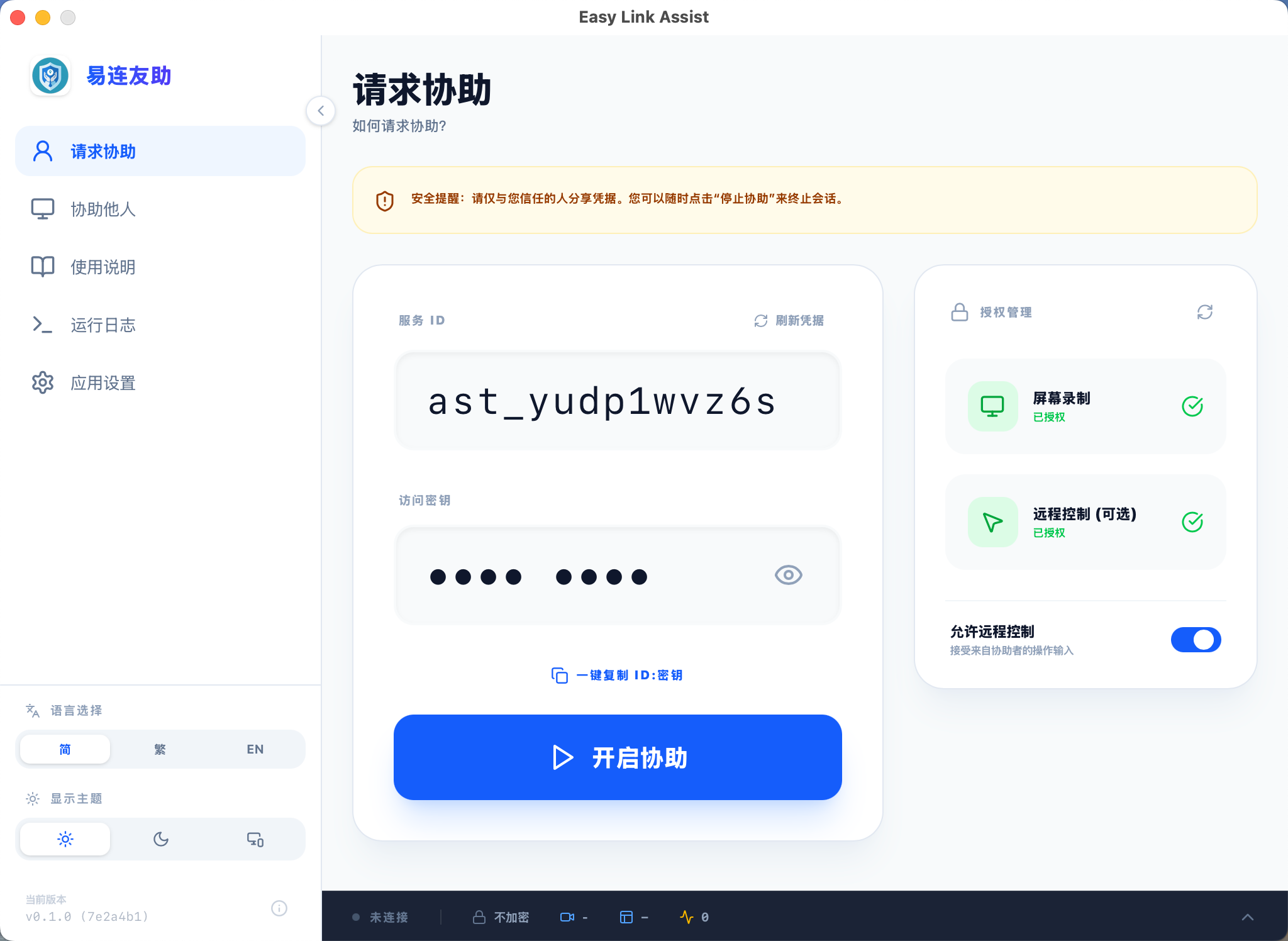
- Open the app and select the "Request Help" tab.
- Tap "Start Assistance Session".
- Grant Permissions:
- Allow "Screen Recording" or "Broadcast" when prompted by the system.
- If remote control is needed, enable "Accessibility" or "Assistive Services" as guided by the application.
- Send the Server ID and Access Key displayed on the page to your assistant.
- ⚠️ Keep App Open: Do not force close the app or stay in the background for too long during the session.
- 🛑 End Session: Once finished, tap "Stop Session" or tap the system screen recording indicator to quickly cut off screen sharing and disconnect immediately.
2. I Want to Help (Assisting Others)
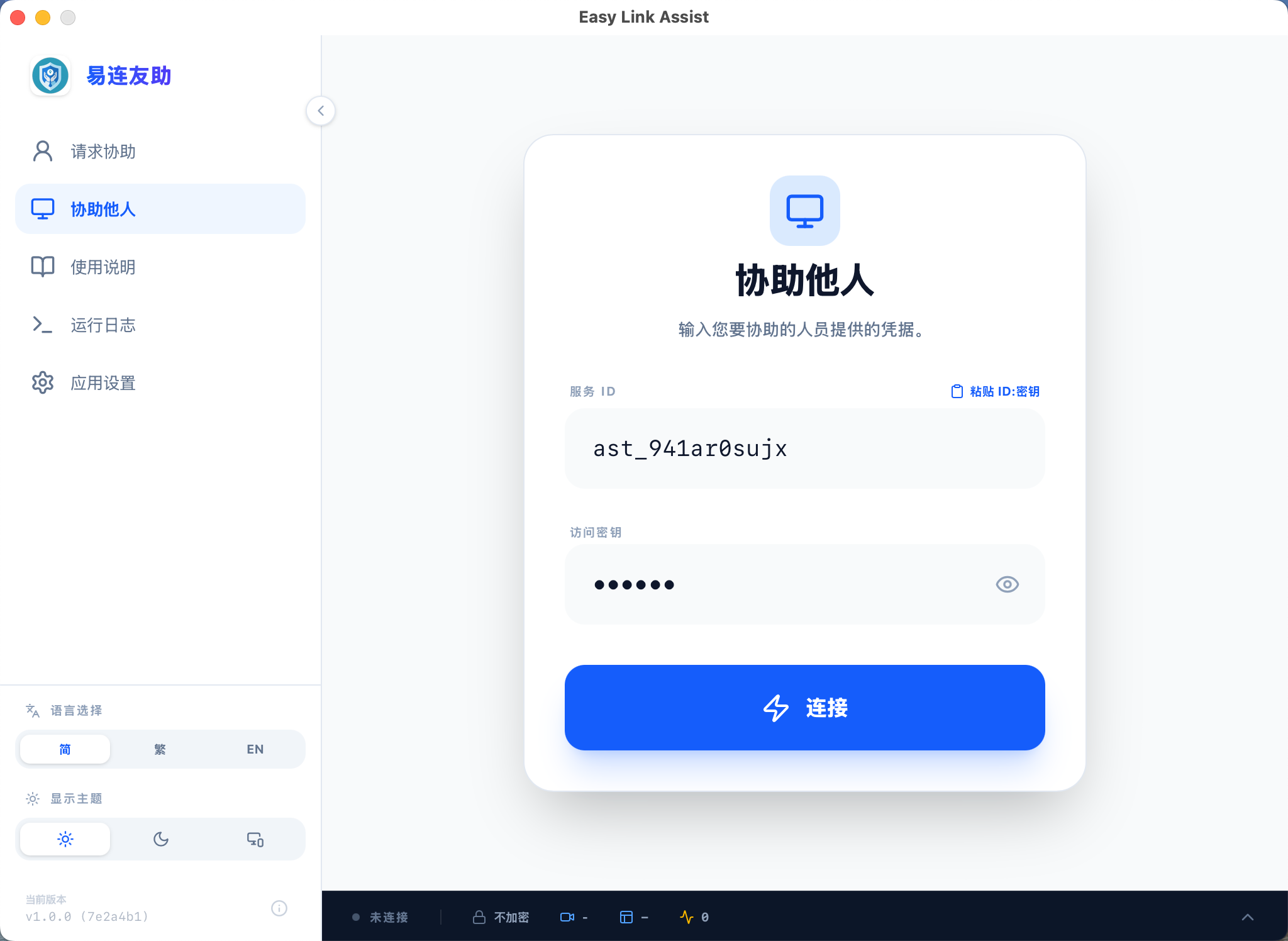
- Obtain the Server ID and Access Key from the person you are helping.
- Open the app and select the "Assist Others" tab.
- Enter the connection details (or paste the combined
ID:Keyformat directly). - Tap "Start Remote Control" to establish the secure connection.
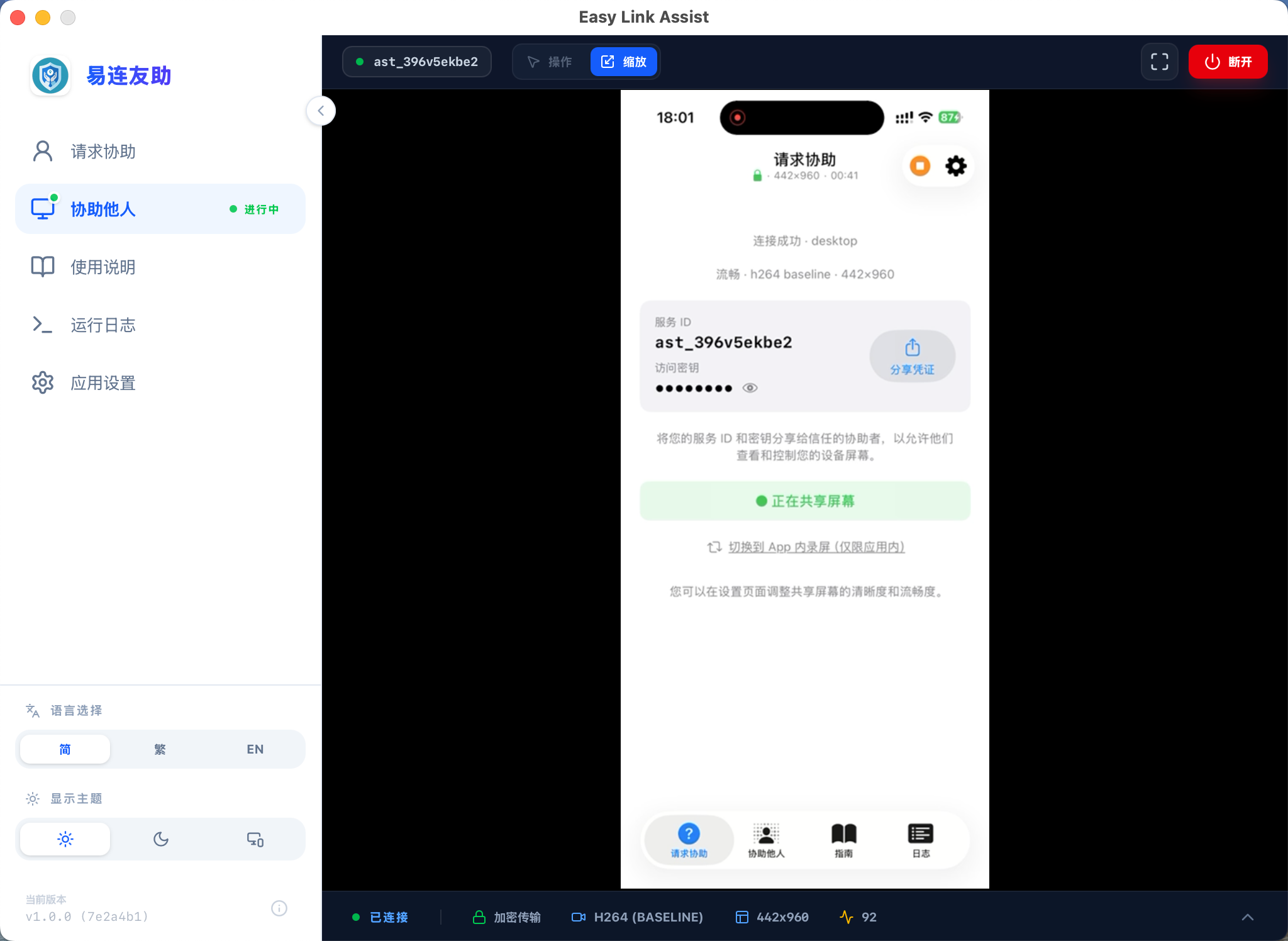
- Once connected, you can view their screen and perform operations using mouse clicks and drag gestures.
Settings & Optimization
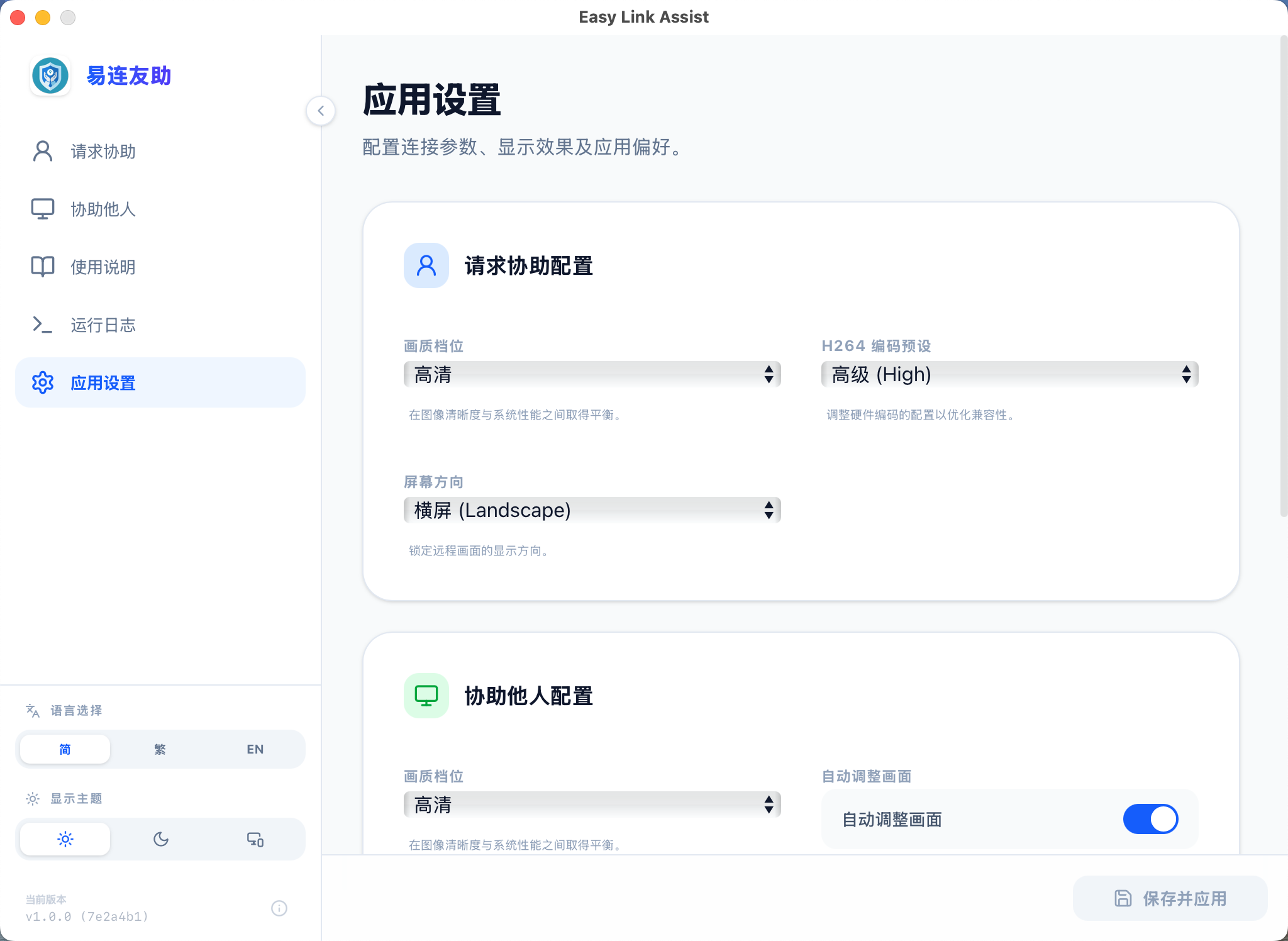
- 🖼 Quality Adjustment: If the video lags due to network bandwidth, you can lower the "Quality" in settings. On a good network, increase it for a clearer view.
- 🛡 Data Encryption: End-to-end secure encrypted transport (E2EE) is enabled by default. In specific network scenarios, you can choose different "Transport Modes" to optimize connection performance.
- ⚡ Performance Mode: Defaults to "Auto". If you encounter display issues, try switching between different "Encoding Profiles" (e.g., H.264 Baseline vs. High profiles).
Dual Role (Sharing & Assisting Concurrently)
- The Request Help and Assist Others tabs run independently. You can share your screen with one helper and assist someone else simultaneously.
- The top-bar Stop button is tab-scoped and color-coded:
- 🟠 On Request Help, Stop ends "sharing my screen" only.
- 🔴 On Assist Others, Stop ends "remote control" only.
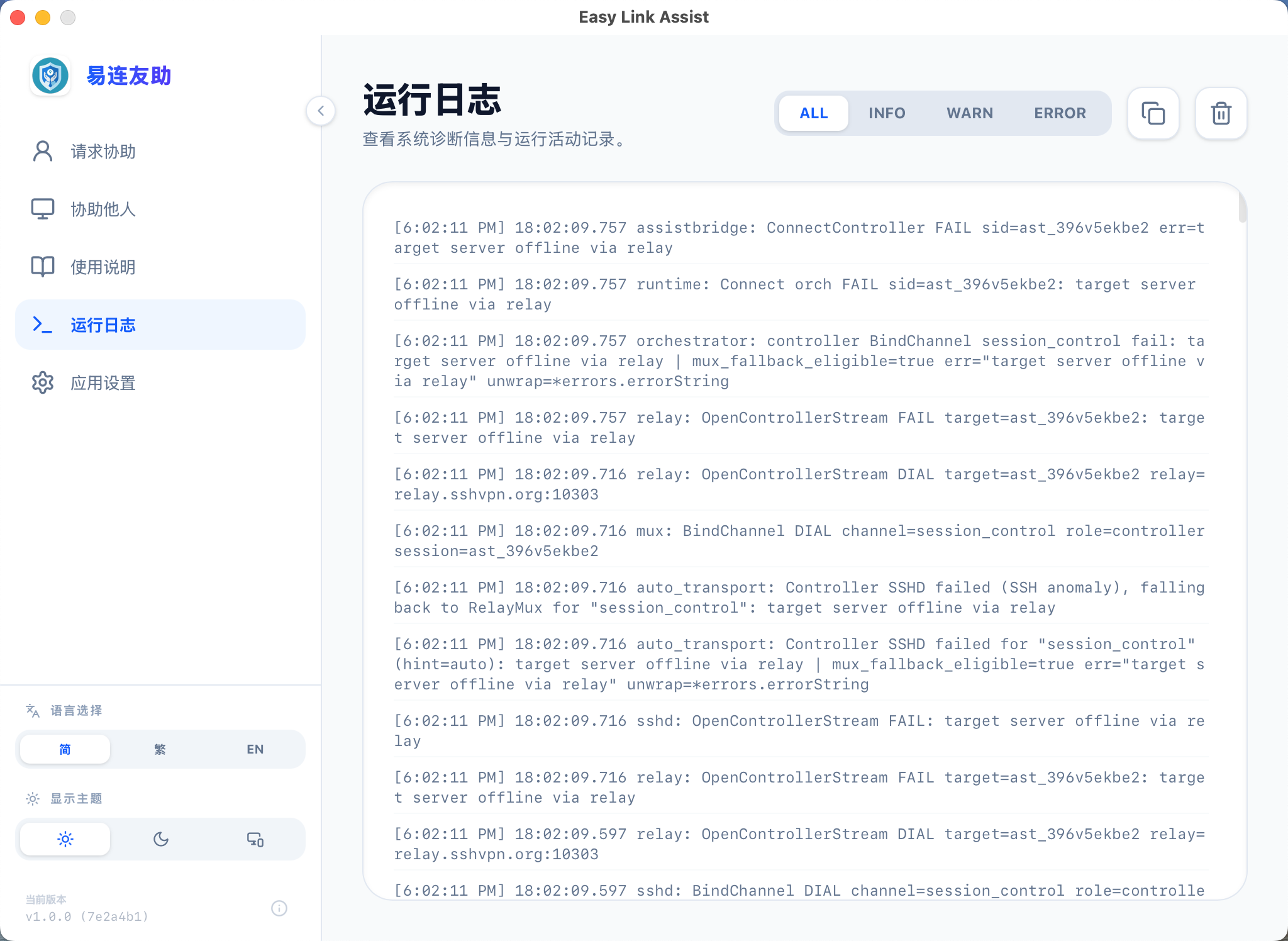
- The Guide and Logs tabs deliberately hide the Stop button — switch back to Request or Assist to end the matching side.
Important Notes & Warnings
🚨 Security Warnings
- 🙅 Beware of Strangers: Only share your access keys with people you know and trust.
- 👀 Real-time Monitoring: You can see every operation on your screen while being assisted. If you notice suspicious behavior, tap the system screen recording indicator to quickly cut off screen sharing, or return to the app and tap "Stop" immediately.
- 🔒 Privacy Protection: Before sharing your screen, it is highly recommended to turn off unrelated notifications and avoid opening pages containing passwords, credit card numbers, or other sensitive information.
💡 General Notes
- Permissions are Key: If the assistant cannot control your screen, it is usually because the required "Assistive Services" are not enabled or have expired.
- Device Compatibility: Due to system limitations, some device models may only support screen sharing and not remote control operations.
- Network Stability: Remote assistance is sensitive to network latency. A stable Wi-Fi or 5G connection is recommended for both parties.